
Ship log
Spin up a Hetzner VPS when you know almost nothing — then hand Cursor the keys
Plain-English Hetzner Cloud: location, server type, Ubuntu, SSH keys, Cursor Remote-SSH, and the exact prompts so an agent can update the box and install a baseline backend.
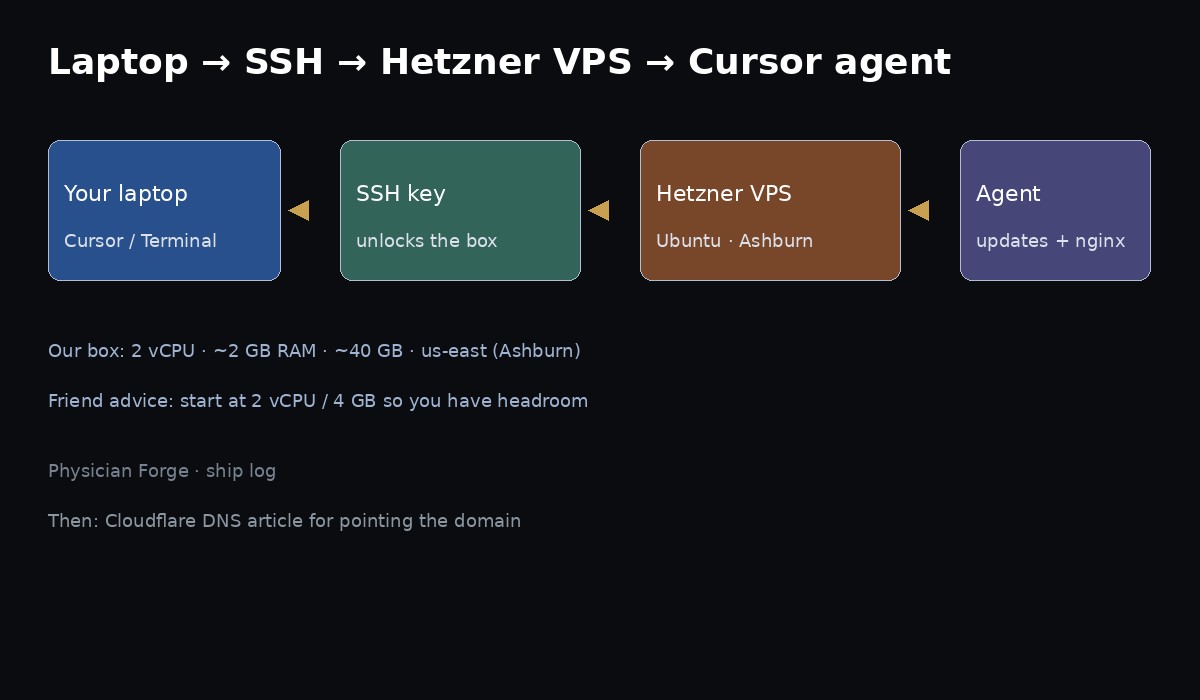
I run Physician Forge (and a pile of other side projects) on a Hetzner Cloud box in Ashburn, Virginia. I did not grow up knowing what a VPS was. I needed a rented computer on the internet that Cursor or Claude could SSH into and finish the boring setup.
This is the path I’d give another physician who has never touched a server: what the words mean, how to choose size and location, how to create the machine with Ubuntu, how to get SSH into Cursor right away, and the prompts to paste so the agent updates the OS and installs a baseline backend.
I’m not inventing a fake “easy button.” Prices change. Screenshots below are dated to this writing. Our live box is real and a little tight — I’ll say that out loud.
Words you need once
| Word | Plain English |
|---|---|
| VPS | A virtual private server — a rented computer in a data center that stays on. |
| Hetzner Cloud | The company we rent from (hetzner.com/cloud). |
| IP address | The number browsers use to find your machine (ours is 178.156.248.249). |
| SSH | Secure Shell — a locked tunnel from your laptop to that machine. |
| SSH key | A lock-and-key pair of files. The public half goes on the server; the private half stays on your laptop. Better than a password. |
| Ubuntu | A Linux operating system. Pick an LTS (“long term support”) image. |
| root | The all-powerful admin account on the server. Handle with care. |
| Cursor Remote-SSH | Cursor running on the VPS so the agent can edit files and run commands there. |
What we actually run (honest specs)
This is the Physician Forge host as of September 9, 2026 — not a brochure SKU:
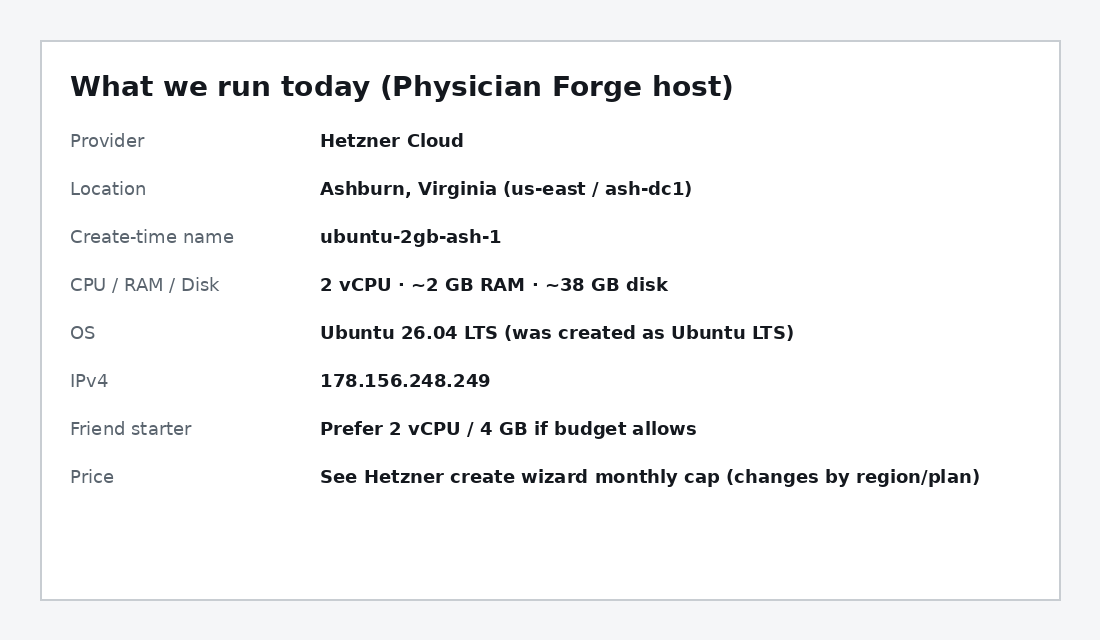
| Fact | Value |
|---|---|
| Provider | Hetzner Cloud |
| Create-time hostname | ubuntu-2gb-ash-1 |
| Location | Ashburn, VA (us-east / ash-dc1) |
| Size | 2 vCPU · ~2 GB RAM · ~38 GB disk |
| OS now | Ubuntu 26.04 LTS |
| IPv4 | 178.156.248.249 |
| Disk pressure | ~80% full — this box also hosts other sites |
Friend advice: if you’re starting clean, buy 2 vCPU / 4 GB RAM (or the closest Regular Performance plan in your region) so you’re not as squeezed as we are. You can rescale later; Hetzner documents that in their create-server flow.
Current cost (look at the wizard — don’t trust my memory)
Hetzner bills hourly with a monthly cap. The number that matters is the monthly max shown when you click Create.
On their Regular Performance page (as of this writing, EUR view), shared plans look like:
| Example plan | Rough shape | Listed “from” monthly |
|---|---|---|
| CPX12 | 1 vCPU · 2 GB · 40 GB | €11.99 / mo |
| CPX22 | 2 vCPU · 4 GB · 80 GB | €19.99 / mo |
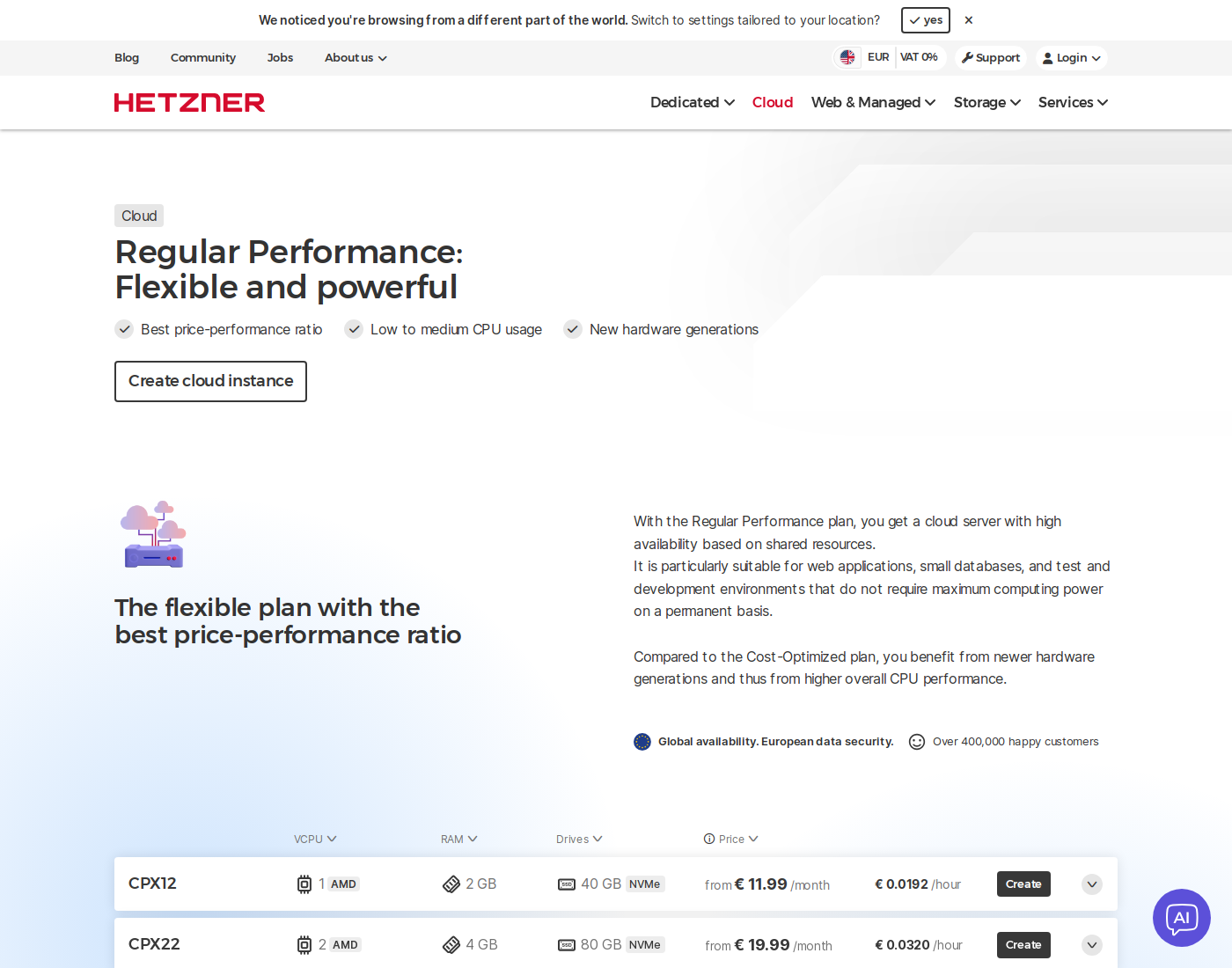
US locations (Ashburn / Hillsboro) often price differently and include less traffic than EU. Always read the price in the create wizard for the location you picked. I am not pasting a fake “our invoice is $X” number — check Console → Billing if you need your exact figure.
Pieter Levels lists Hetzner in his lean SaaS stack for the same reason we do: one boring VPS bill instead of five hosting products (that thread).
How to choose location
Hetzner Cloud locations include Germany (Nuremberg, Falkenstein), Finland (Helsinki), Singapore, and the US (Ashburn, VA and Hillsboro, OR).
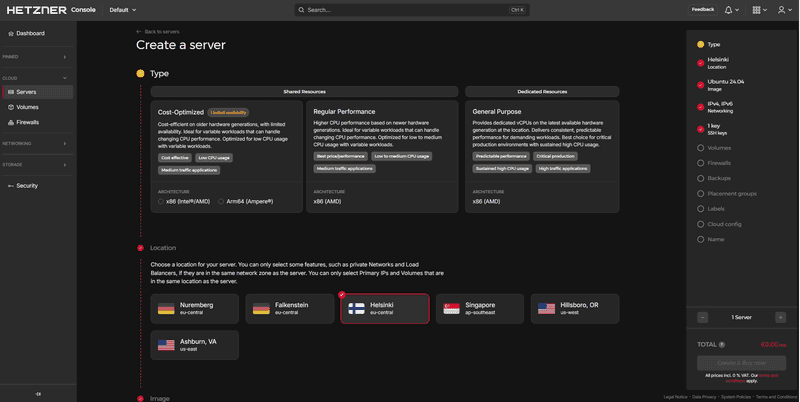
Rules of thumb:
- Put the server near your readers (or near you, if you’re the main user). We picked Ashburn because most of our audience is US East / East-ish.
- EU locations are often cheaper and include much more traffic than US plans. Fine if latency to the US is acceptable or Cloudflare sits in front.
- Don’t overthink tiny blogs. Docs say for smaller projects any location is fine; for bigger ones, pick closest.
- GDPR / EU data stories → Germany or Finland is the easier story. Healthcare-adjacent side projects still aren’t an excuse to be sloppy — but location is one lever.
How to choose server type
In the create wizard you’ll see families like:
| Family (plain) | When to use it |
|---|---|
| Shared · Cost-Optimized | Cheapest; older hardware; light / bursty sites. Fine for experiments. |
| Shared · Regular Performance | Best default for a physician side project. Newer hardware, still shared. Start here. |
| Dedicated · General Purpose | You need predictable CPU all day (heavy apps, constant load). Costs more. |
| ARM (Ampere) where offered | Cheaper compute if your stack supports ARM. Stick to x86 (Intel/AMD) if you don’t want surprise package issues on day one. |
For Physician Forge–shaped work (static/Astro site, nginx, a Discord bot, SQLite analytics): Shared Regular Performance, x86, Ubuntu LTS is the boring right answer.
Before you click Create — make an SSH key on your laptop
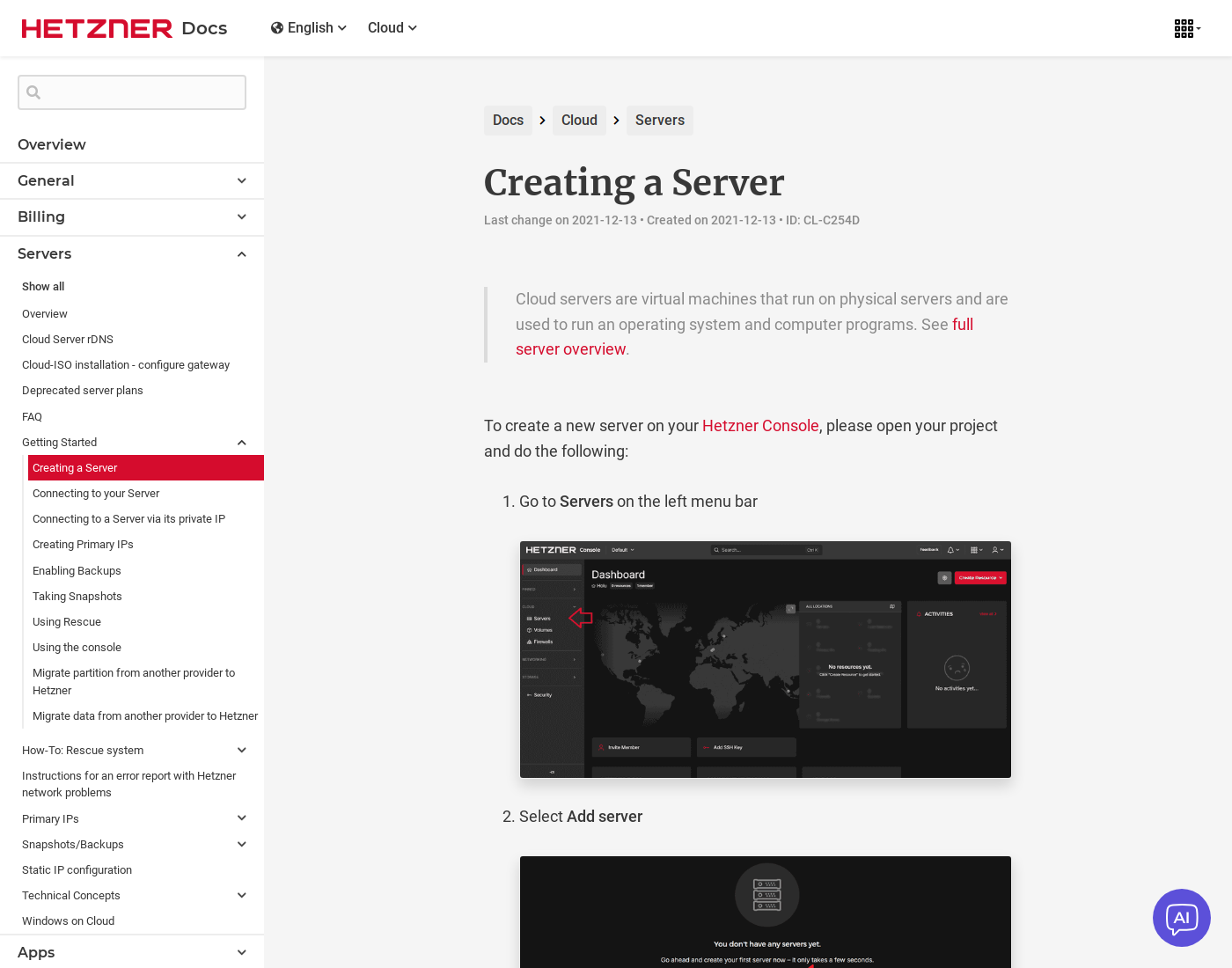
Do this first. Hetzner’s docs are blunt: after the server exists, you cannot attach an SSH key through the Console UI anymore (you’d add it by hand over SSH). Put the key on at create time.
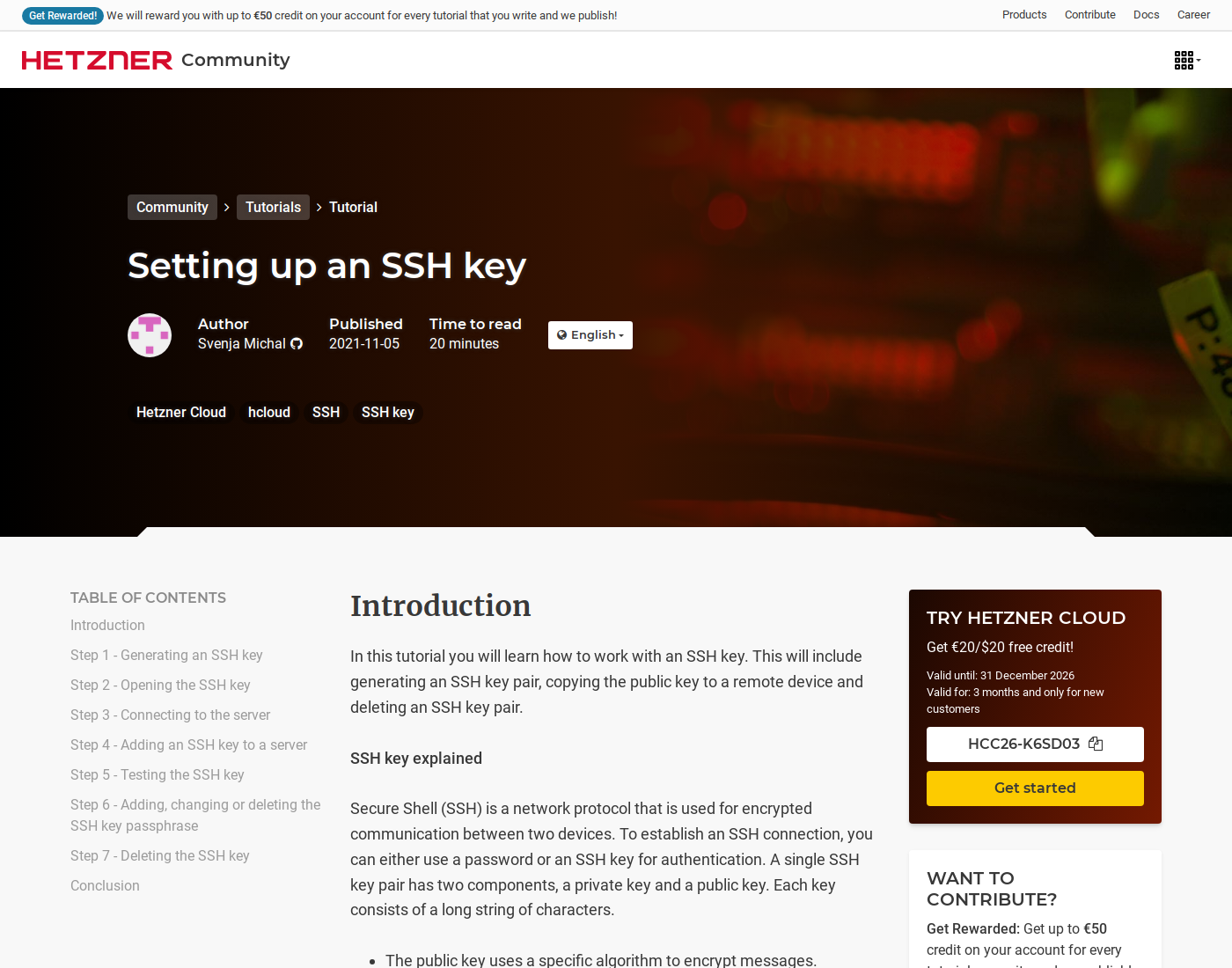
Official walkthrough: Creating a Server · community SSH tutorial: How to use SSH keys.
On a Mac or Linux laptop
Open Terminal and run:
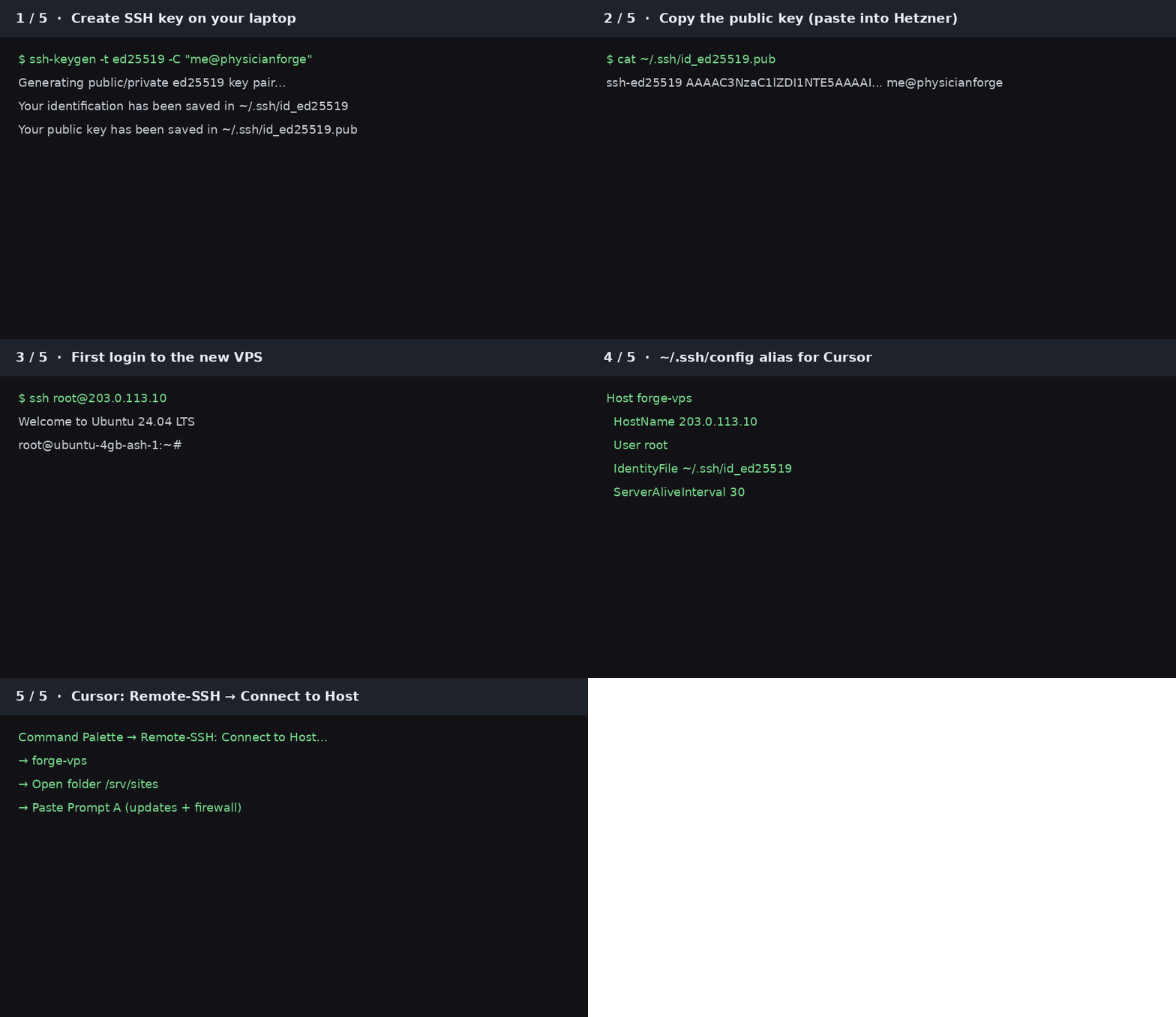
ssh-keygen -t ed25519 -C "you@yourdomain.com"Hit Enter to accept the default path (~/.ssh/id_ed25519). Set a passphrase if you want (recommended).
Show the public key (safe to paste into Hetzner):
cat ~/.ssh/id_ed25519.pubIt should start with ssh-ed25519. Never paste the file without .pub into a website or chat.
On Windows
Use PowerShell the same way if OpenSSH is installed, or use Windows Terminal. Cursor can also open a terminal for you later.
Create the server (click path)
- Log into Hetzner Console → Cloud project.
- Servers → Add server.
- Type: Shared → Regular Performance → pick 2 vCPU / 4 GB (friend default) or the closest available in that location.
- Location: Ashburn if you’re us-shaped like us; otherwise closest to readers.
- Image: Ubuntu → newest LTS shown (24.04 or whatever LTS is current in the wizard). Don’t pick a random “App” unless you know why.
- Networking: keep IPv4 + IPv6 for a first public site.
- SSH key: add the public key you just created. Confirm the sidebar shows 1 key.
- Optional now: enable Backups if you like sleep (costs extra).
- Name it something boring (
forge-vps). - Read the monthly price → Create & Buy.
Wait until the server is running. Copy the IPv4.
Prove SSH works from your laptop (30 seconds)
Replace the IP with yours:
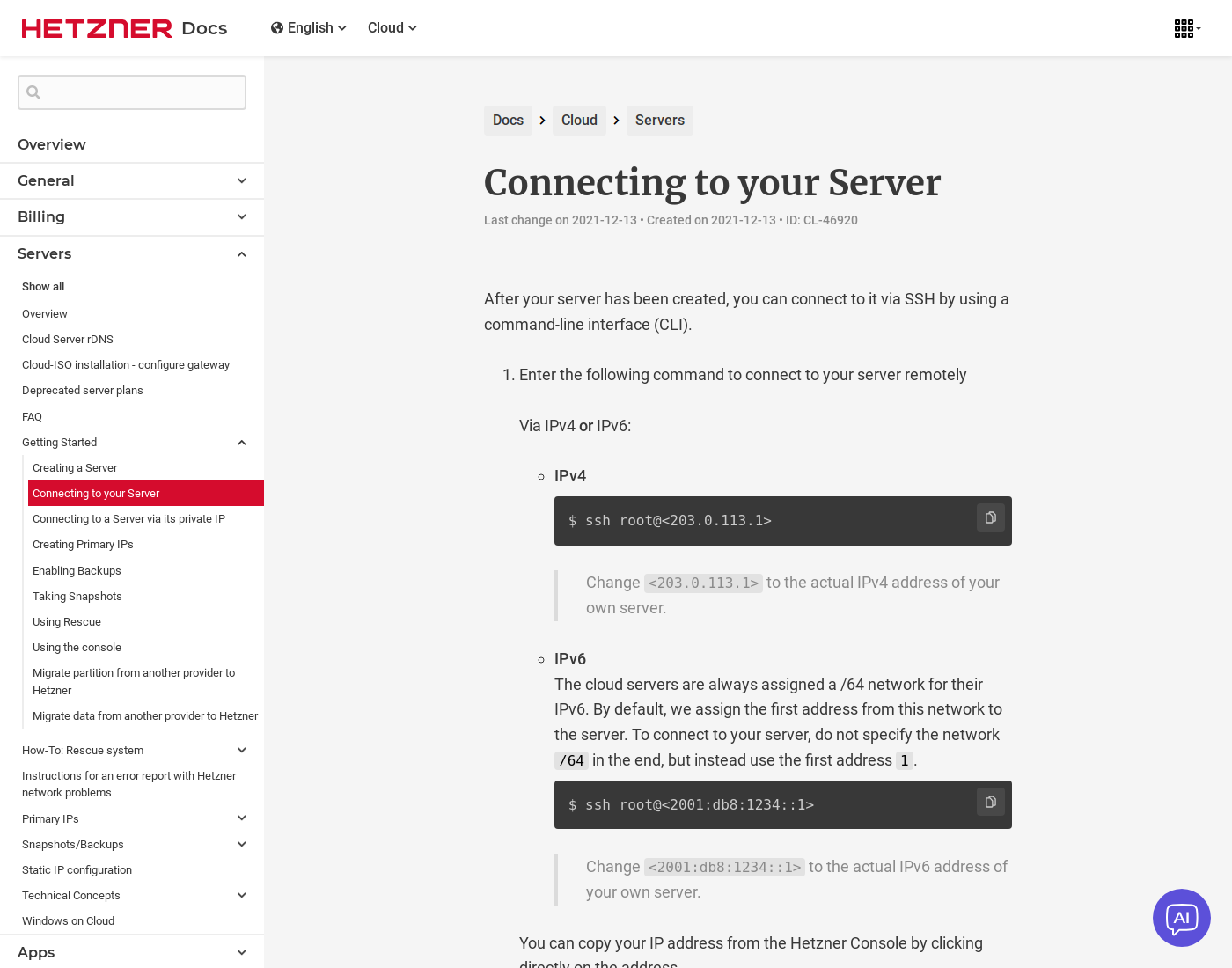
ssh root@YOUR.IPV4.ADDRESSFirst time it asks to trust the host fingerprint — type yes. You should land in a shell that looks like root@ubuntu-…:~#.
Type exit to leave.
If it fails: wrong IP, key not attached at create, or corporate network blocking port 22.
Wire Cursor (or Claude Code) over SSH immediately
Goal: the agent works on the VPS, not only on your laptop copy of files.
1) Add a Host alias (laptop)
Create or edit ~/.ssh/config:
Host forge-vps
  HostName YOUR.IPV4.ADDRESS
  User root
  IdentityFile ~/.ssh/id_ed25519
  ServerAliveInterval 30
  ServerAliveCountMax 6
Test: ssh forge-vps should log you in without typing the IP.
2) Cursor Remote-SSH
- Install / enable the Remote - SSH extension in Cursor (Anysphere’s Remote SSH).
- Command Palette → Remote-SSH: Connect to Host…
- Pick
forge-vps(or Add New SSH Host and enterssh root@YOUR.IP). - Open a folder — start with
/rootor create/srv/sitesafter Prompt B. - Open the agent chat in that remote window. Commands now run on Hetzner.
If a saved workspace refuses to reconnect (some Remote-SSH versions mangled saved authorities in 2026), use Connect to Host fresh instead of restoring an old remote workspace, or pin a known-good extension version. Fresh connect is the reliable path.
3) Claude Code / CLI agents
Same SSH alias works. Point the tool at the remote host / open the remote folder the same way you would for any SSH project. The prompts below are host-agnostic once you’re on the box.
Prompt A — first hour (paste into the remote agent)
You’re connected over SSH. Paste this:
You are on a fresh Hetzner Cloud Ubuntu LTS VPS. I am not a sysadmin. Do the safe first-hour setup.

Goals:
1) Apply OS updates (apt update && apt upgrade -y). Reboot only if the kernel requires it and tell me before rebooting.
2) Install: ufw, fail2ban, curl, git, ca-certificates, unattended-upgrades.
3) Configure UFW: allow OpenSSH (22), HTTP (80), HTTPS (443). Enable UFW. Show `ufw status`.
4) Enable unattended-upgrades for security patches with sane defaults.
5) Print: Ubuntu version, free disk, free memory, public IPv4 guess (`curl -4 -s ifconfig.me`), hostname.
6) Do NOT disable SSH password auth until you confirm key-based login works for me (ask me to open a second terminal and `ssh forge-vps` successfully).
7) Do NOT install Docker, WordPress, or a full app stack yet.
8) Never print or invent secrets. Never commit keys.

Dead ends to avoid:
- Closing port 22 before SSH keys are verified
- apt scripts that assume interactive Yes/No without DEBIAN_FRONTEND=noninteractive
- Storing anything important under a web-exposed folder yet

When done, give me a short checklist of what changed and what I should do next (Prompt B).
Prompt B — baseline backend (nginx + Node + /srv/sites)
After Prompt A looks good:
Continue on this Ubuntu Hetzner VPS. Install a boring web baseline suitable for static sites / Node apps.

Do:
1) Install nginx; enable and start it; `nginx -t` must pass.
2) Install Node.js LTS (Node 22.x via NodeSource or Ubuntu’s current LTS Node — pick one, document which).
3) Create `/srv/sites` owned appropriately for deploys.
4) Drop a tiny nginx site that serves a placeholder from `/srv/sites/hello/` (index.html saying the hostname + date). Enable the site, reload nginx.
5) Show me how to hit it via http://IPV4/ (warn that DNS isn’t pointed yet).
6) Install certbot + python3-certbot-nginx but DO NOT issue certificates until a domain points here (explain why).
7) Create a short `/root/SERVER.md` with versions installed and ports open.

Do not:
- Clone Physician Forge or any private repo unless I paste a URL + deploy key instructions
- Put databases or analytics SQLite under a public web root or `dist/` folder (data belongs under something like `/var/lib/...` later)
- Open extra ports casually

When finished, summarize commands I can re-run and hand me Prompt C options.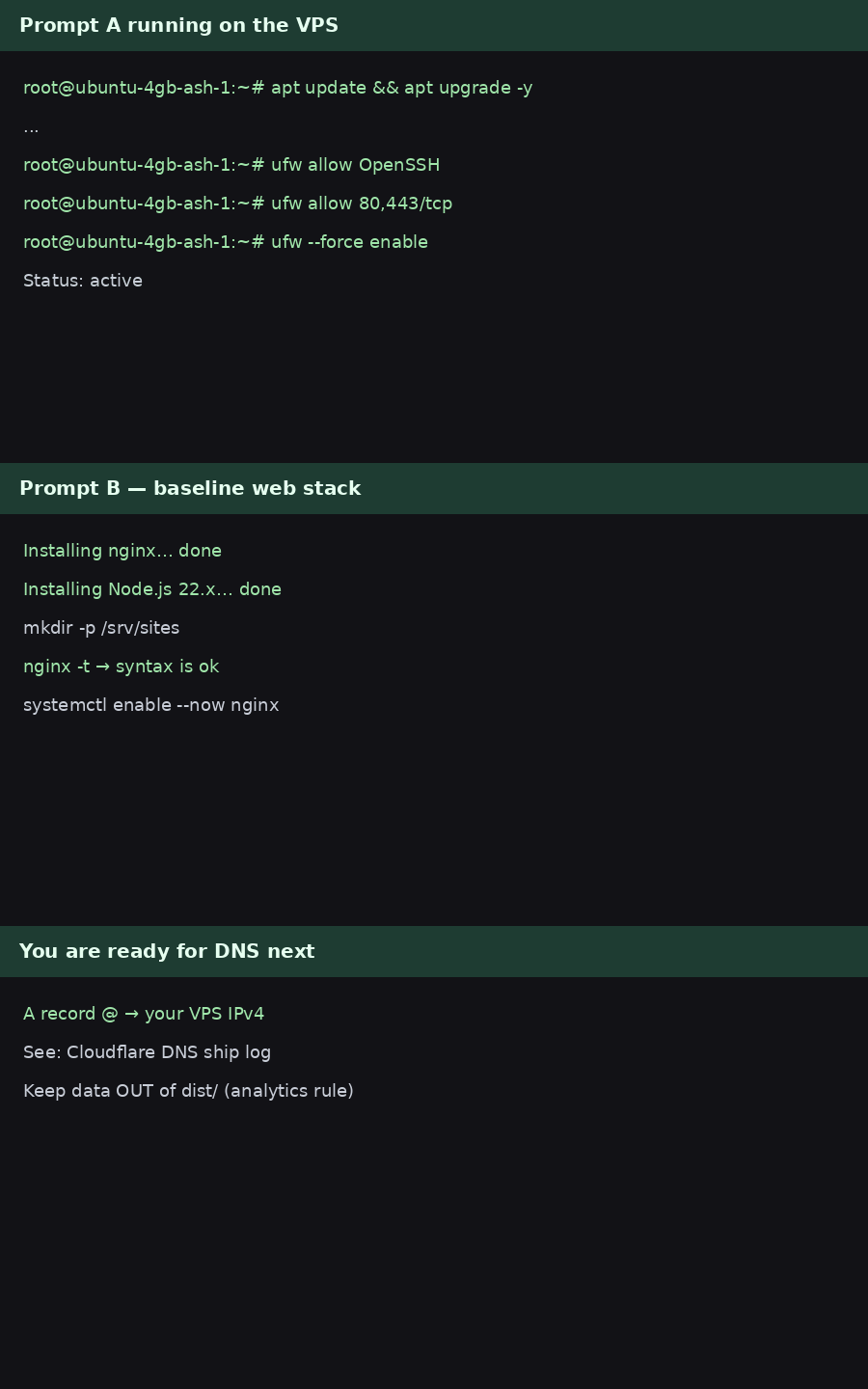
Prompt C — first real project folder (optional same day)
I have nginx + Node on this Hetzner VPS. Create an isolated project at /srv/sites/MYPROJECT with git init.

Constraints:
- Ubuntu LTS on Hetzner
- nginx will reverse-proxy or serve static files from this project later
- Keep secrets in .env (gitignored); provide .env.example only
- Add a minimal README with: how to pull, how to build, how to restart
- Do not touch other sites under /srv/sites
- If proposing systemd, write a simple unit and enable it only after I approve the name

Ask me: static HTML, Astro static, or Node server? Then scaffold only that.
For Physician Forge itself we eventually landed on Astro + nginx + systemd services (Discord bot, analytics). You do not need that on day one. The rebuild ship log is the long version of “what this box grew into.”
After the box is healthy — DNS
You have an IPv4. Next you teach the world the name:
- Cloudflare (or your DNS host) A record for
@andwww→ VPS IP - Then certbot / HTTPS
We wrote the non-coder, agent-first version here: I left Namecheap DNS for Cloudflare so Cursor could manage my domains.
Hard-won notes from this exact server
- One VPS can host many sites — ours does. Namespaces matter (
/srv/sites/physicianforge.com, separate nginx vhosts, separate systemd units). Don’t let projects overwrite each other. - Disk fills up. At ~80% on 38 GB we feel it. Prefer 4 GB / larger disk plans if you expect Docker images, Playwright browsers, or lots of logs.
- Analytics and secrets live outside deploy folders. On Physician Forge, analytics SQLite sits under
/var/lib/physicianforge/sorsync --deleteofdist/can’t wipe it. Bake that habit into Prompt B/C. - Never paste root passwords or private keys into chat. We already learned that the hard way with Discord tokens.
- Ubuntu LTS drifts. We created on an LTS image; the box now reports Ubuntu 26.04 LTS. Pick whatever LTS the wizard offers on your day; don’t chase non-LTS novelty.
Master prompt (entire journey in one paste)
If you want a single brief for a brand-new agent session after SSH works:
I just created a Hetzner Cloud VPS. I am a non-technical builder. Help me finish day-one setup.

Facts I will fill in:
- IPv4: ____
- Location: ____ (e.g. Ashburn us-east)
- Plan: ____ (e.g. ~2 vCPU / 4 GB / Ubuntu LTS)
- SSH alias on my laptop: forge-vps (key-based)

Phase 1 — OS hygiene:
apt updates, ufw 22/80/443, fail2ban, unattended-upgrades, report disk/RAM/OS.

Phase 2 — web baseline:
nginx, Node 22 LTS, /srv/sites, hello placeholder site, certbot installed but not issued.

Phase 3 — explain next:
how to point Cloudflare A records at this IP; link me to a DNS checklist; warn about putting databases under public web roots.

Rules:
- Explain each change in plain English before running destructive steps
- No Docker unless I ask
- No secrets in git
- Don’t lock me out of SSH
- Write /root/SERVER.md when done

Start with Phase 1. Pause for my OK before reboots or firewall changes that could drop SSH.
What’s in vs out of this article
In: rent the computer, Ubuntu, SSH keys, Cursor Remote-SSH, agent prompts for updates + nginx/Node baseline.
Out: full Stripe membership, Discord bots, headless WordPress, multi-site nginx maps — those are later ship logs on the same philosophy: Cloudflare DNS, Forge Grok bot, analytics durability.
You don’t need to become a sysadmin. You need a locked door (SSH key), a rented room in Ashburn (or closer to your readers), and an agent that can see the room.
Official references worth keeping open while you click: Hetzner Cloud · Creating a Server · Connecting to your Server · SSH key tutorial.
Keep reading
- I left Namecheap DNS for Cloudflare so Cursor could manage my domainsNext step after you have an IP — point the domain.
- Pieter Levels cancelled ScrapingBee — here’s the prompt he left for buildersWhy Hetzner shows up on lean SaaS lists.
- Starting the Forge rebuildWhat this same VPS eventually runs.
- Don't Quit Medicine. Build Leverage.Keep the license. Build anyway.
- We built our own analytics (no Google) — and how to add GA anywayHow Physician Forge tracks humans, bots, and AI referrals on a VPS with SQLite — public Stats walkthrough, the durability prompt that keeps deploys from wiping history, Cursor briefs for non-coders, plus optional Google Analytics.
- Cursor for people who don’t code — download, open a folder, give it a jobA physician-friendly Cursor onboarding: install, open a folder, Agent vs Ask vs Plan, screenshot walkthroughs, and the exact prompts to paste for your first small win.